For many online schools, one of the biggest headaches is coordinating with multiple teachers who might be spread out around the world just to get their availability. Online forms, WhatsApp messages, manual timezone conversions — all of it is exhausting and time-consuming, and it eats into time that could be spent creating better material. And what happens when a teacher changes their availability last minute?
DreamTimetable has you covered with our integrated forms.
DreamTimetable integrated forms
With our integrated forms, you can use DreamTimetable as a centralized place to communicate with your teachers about their availability — either send them an interactive form through in-app mail, or share a link directly. You can track, in one centralized view, who has completed their form and who hasn’t. And the best part: submitted availabilities are automatically used in the app to build the schedule.
We also support automatic timezone conversion, so teachers input their availability in their own local time, while you view everything in your school’s time. And for last-minute changes, you can leave the form open for as long as you like — any changes a teacher makes are applied in the app in real time.
How to setup and use our forms
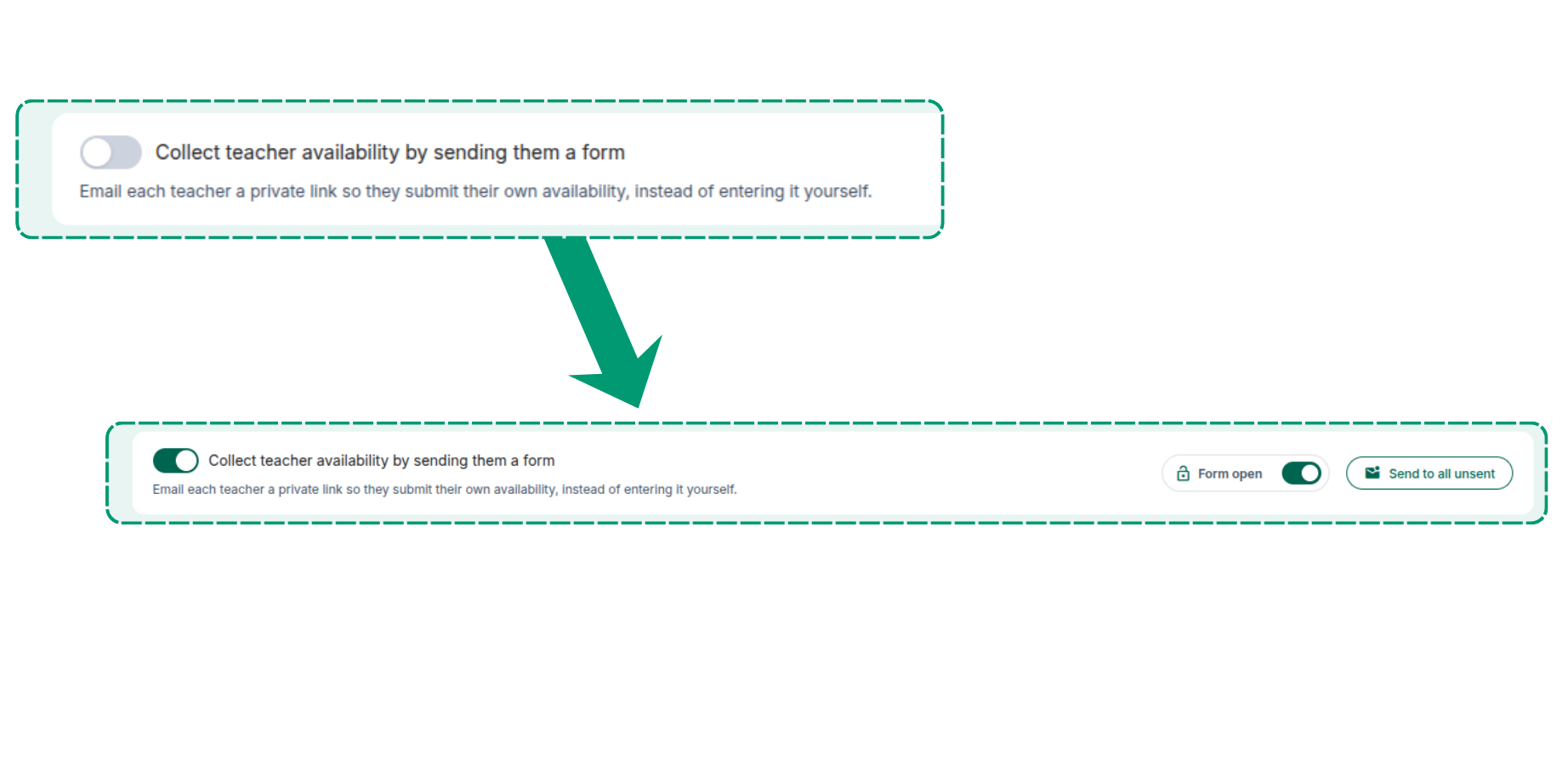
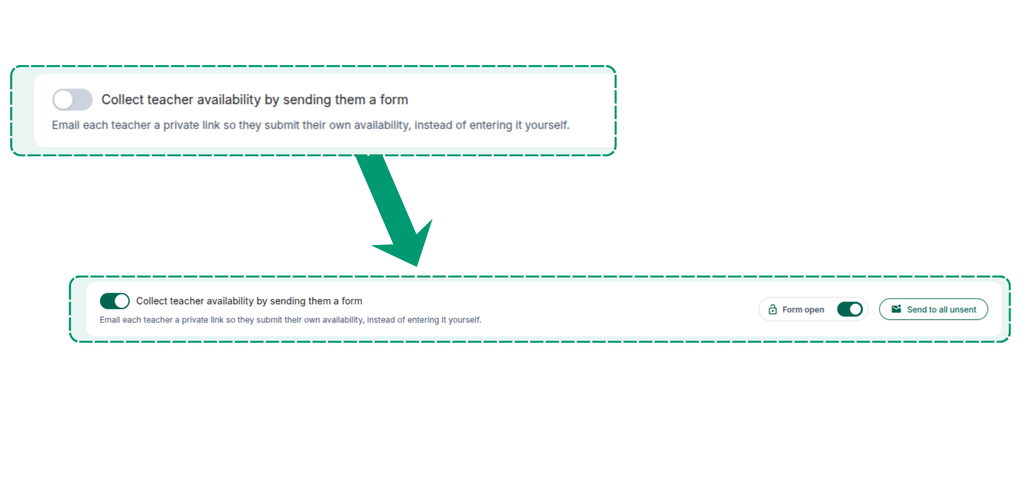
Using DreamTimetable forms is extremely easy. Just go to the Teachers page and toggle “Collect teacher availability by sending them a form.”
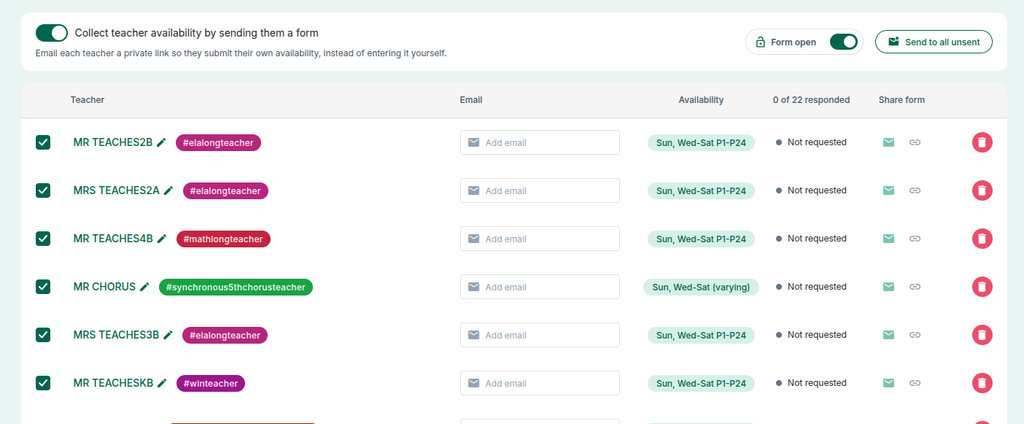
You should now see a few new fields added to each teacher row, such as email, response status, and share form.
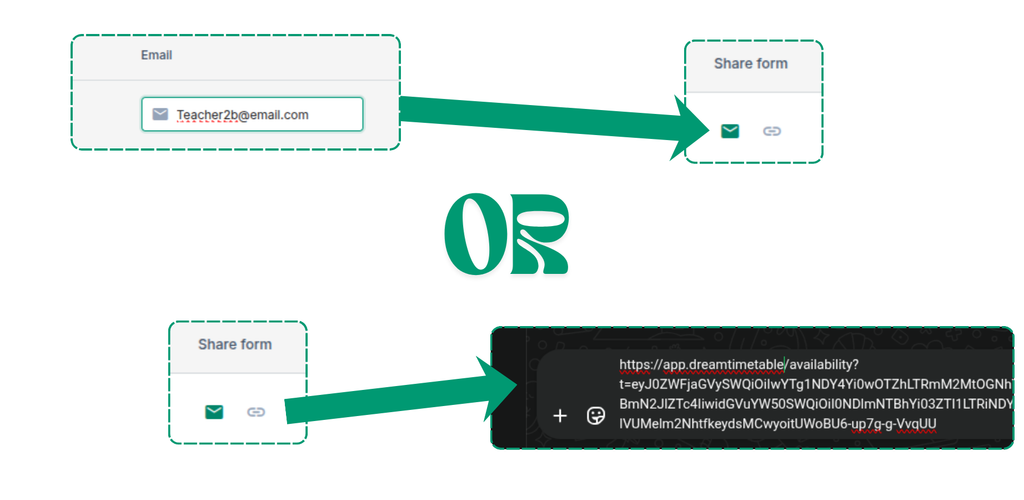
Now let’s try asking a teacher to fill out their form. You can either enter their email and click the mail button in the share form, or just click the link button and share the form link directly.
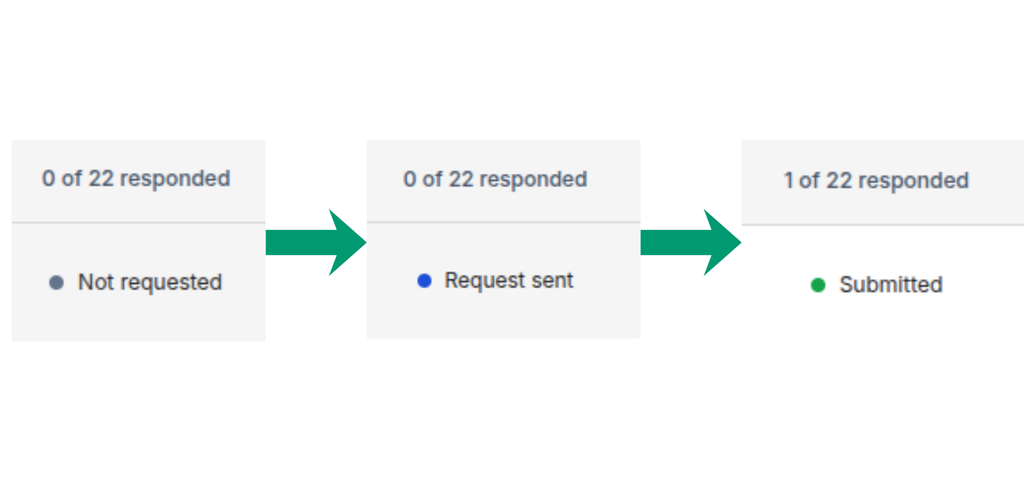
You can always monitor the status from the indicators shown below.
The form can be opened by the teacher in either a mobile or desktop browser.
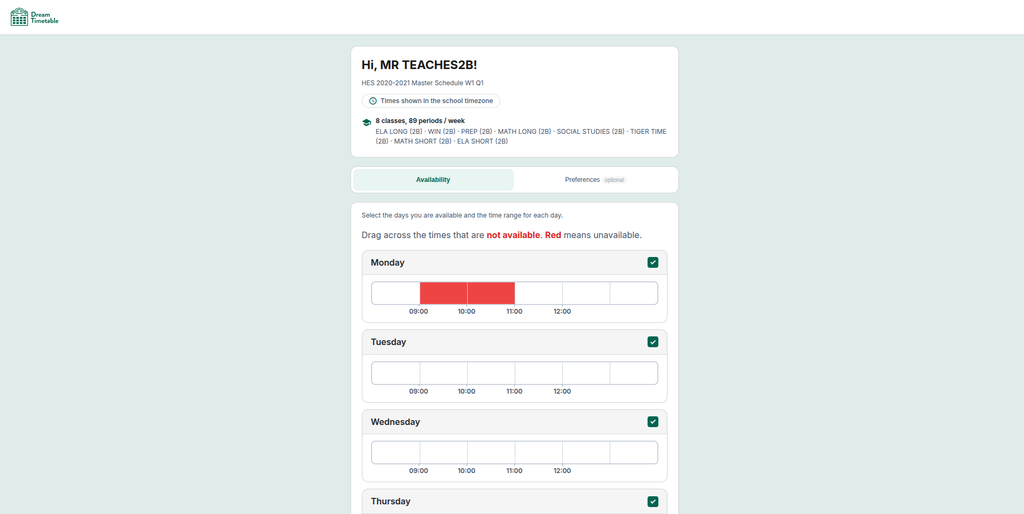
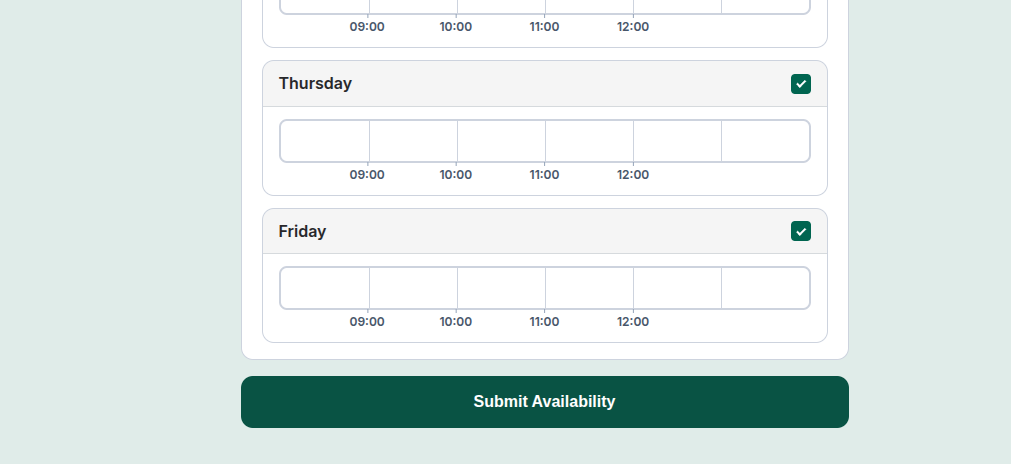
After filling in their availability, the teacher clicks the Submit button.
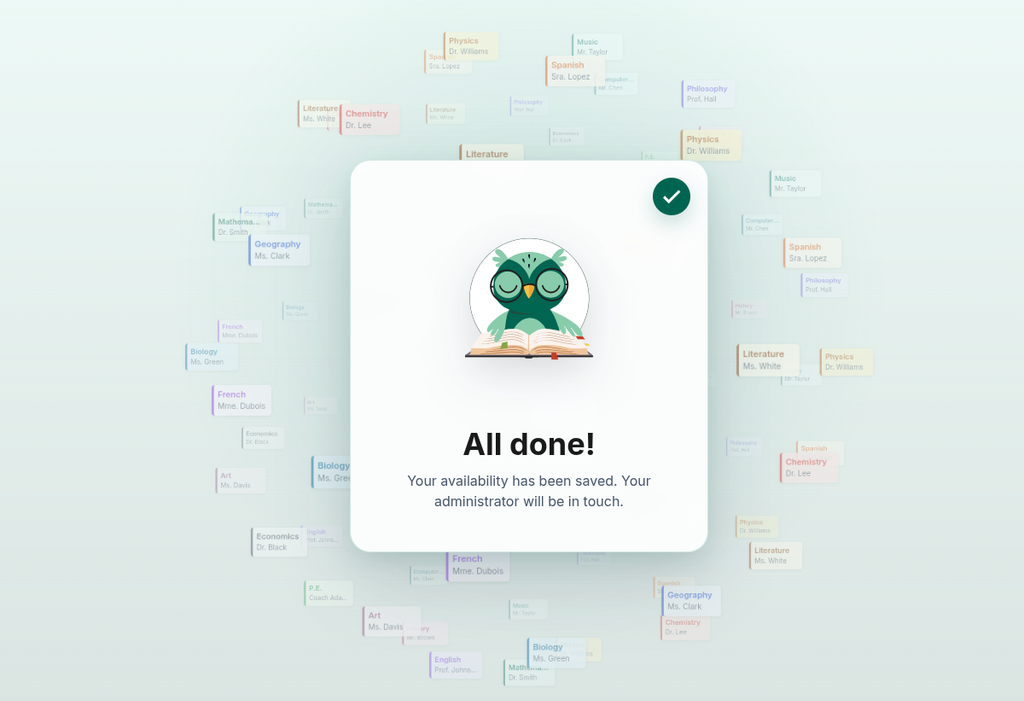
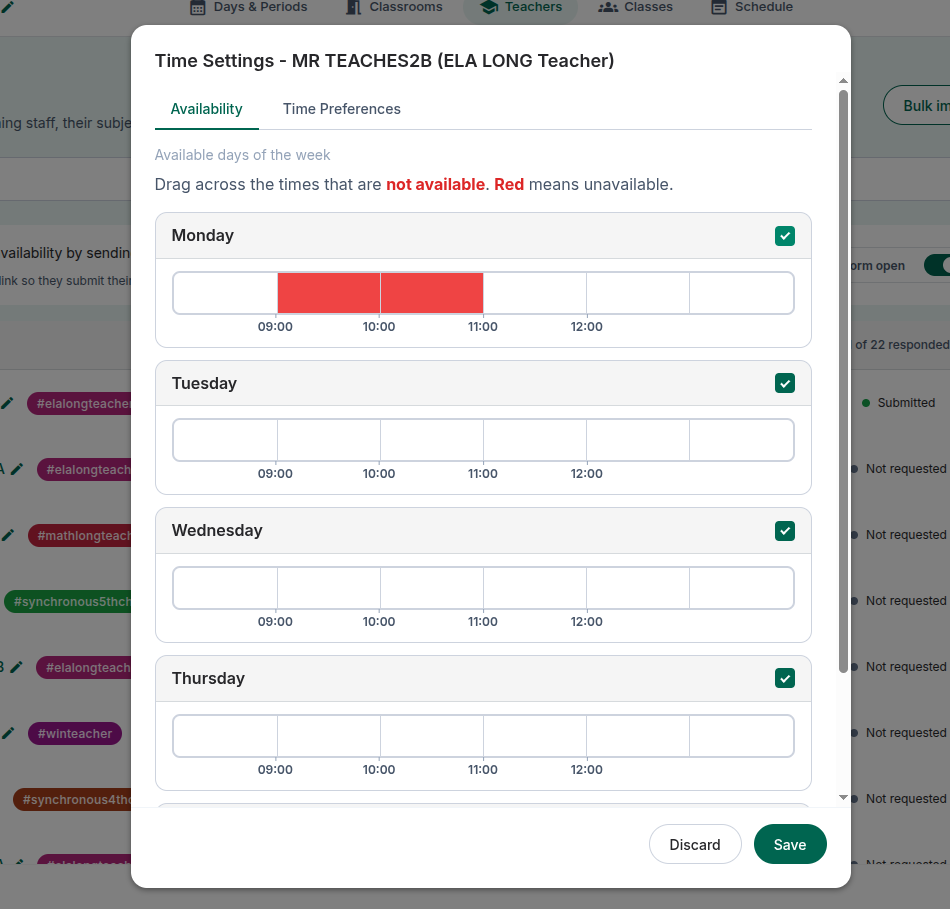
Once a teacher has submitted their form, the submission can be viewed directly from the app.
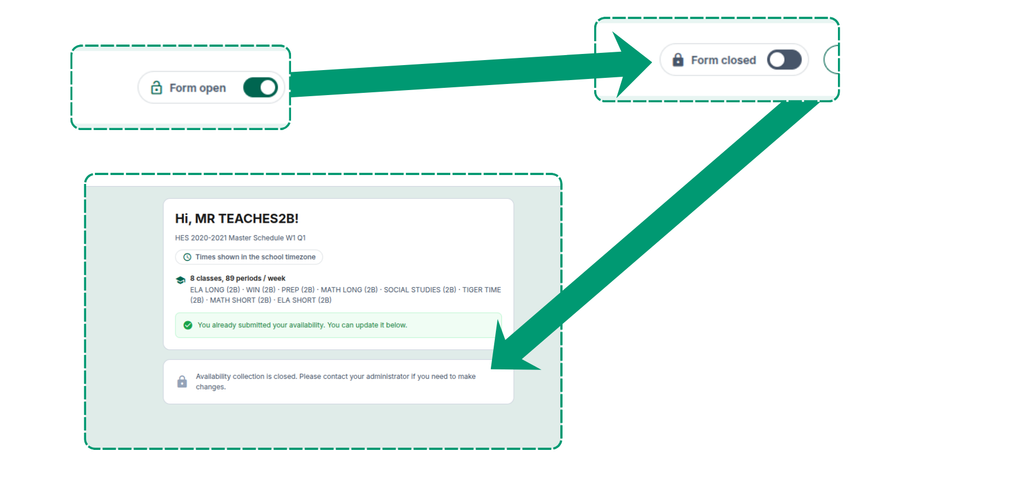
Once submissions are complete and you no longer want to accept changes, you can toggle the form off, as shown below.
Timezone Transposition
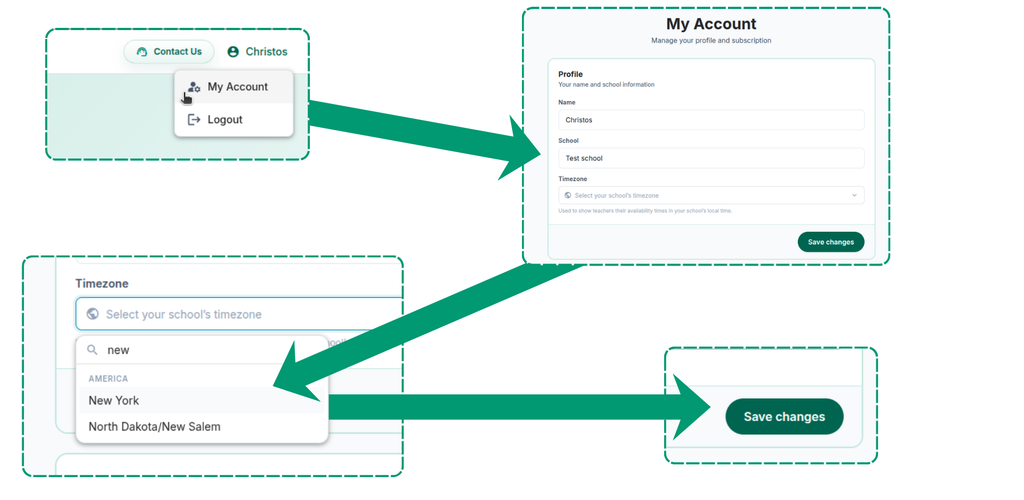
If you have teachers in different timezones, you can set up the timezone transposition feature by going to your profile page and setting your school’s timezone.
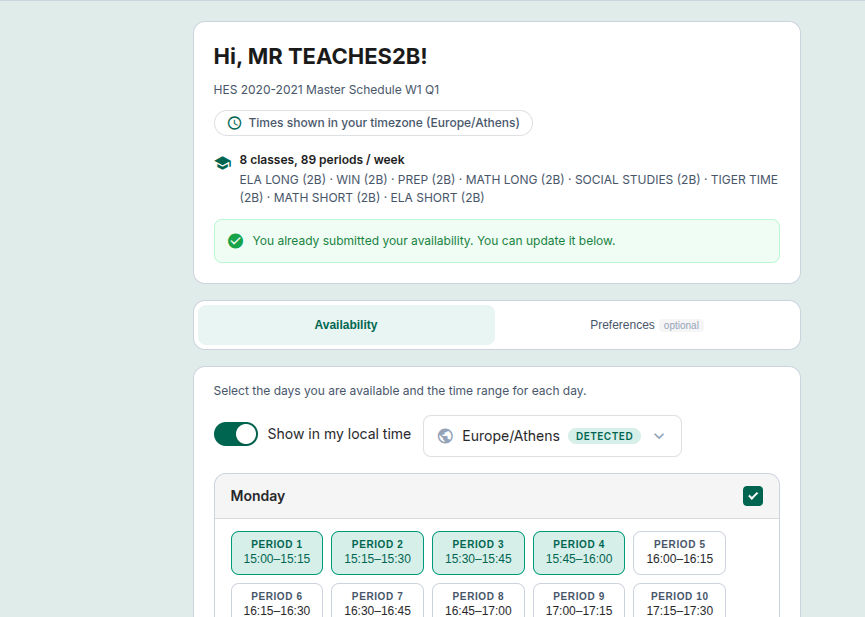
In the forms, you’ll now see a toggle that transposes your school’s time into your teacher’s local time. Of course, when the teacher submits their availability, the times are displayed in their local time.
Wrapping Up
No more chasing teachers across time zones, group chats, and half-filled spreadsheets. With DreamTimetable’s integrated forms, availability collection becomes a single, centralized workflow — from sending the request, to tracking who’s responded, to feeding submitted availability straight into your schedule, with timezones handled automatically along the way.
It’s one more way DreamTimetable takes a task that used to eat up hours of back-and-forth and turns it into something that just runs in the background, so you can focus on the parts of running a school that actually need your attention.
Want to see how this fits your school’s setup?
with one of our customer support specialists, and we’ll walk you through getting your teachers’ availability collected the easy way.